

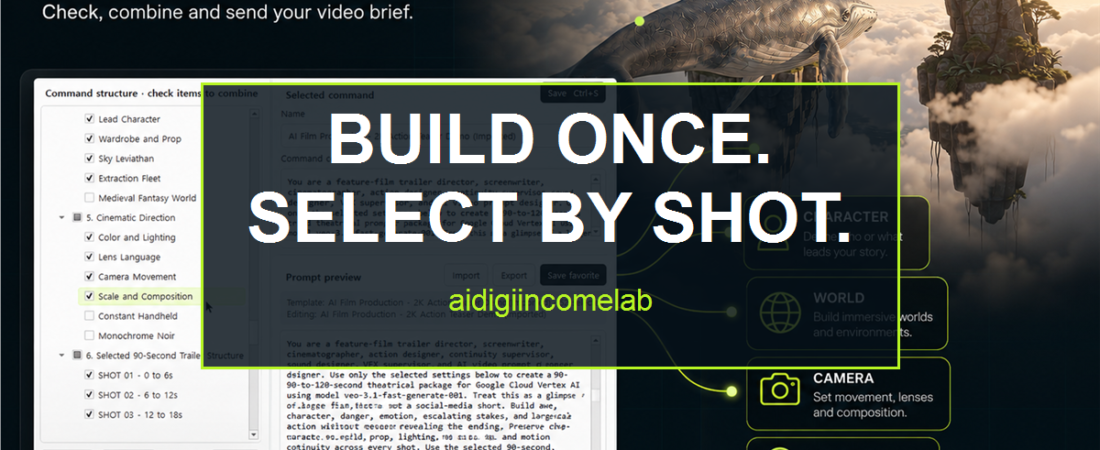
Build a Reusable AI Video Prompt From Selectable Blocks
Direct answer: Build a reusable AI video prompt by separating stable continuity rules from shot-specific directions, storing each complete instruction as a clearly named block, and selecting only the blocks needed for the current shot. Before sending the prompt, read the combined result as a standalone request and remove duplicates, conflicts, unclear references, and dependencies on unchecked blocks.
Start by separating what stays fixed from what changes
Every new shot can quietly turn into another round of prompt reconstruction. You copy the character description, hunt for the world rules, paste the camera notes, remove instructions that do not apply, and hope nothing important changed along the way. That repetition costs time, but the bigger loss is continuity: one missed detail can give your character a different outfit, alter the environment, or change the visual logic between shots.
A reusable prompt does not have to be one giant template. A more flexible approach is to treat it as a set of selectable instruction blocks.
Continuity blocks
Continuity blocks hold details that should survive across many shots:
- Character identity, appearance, wardrobe, and recurring props
- World geography, architecture, weather, era, and visual rules
- Color palette, lighting logic, and overall visual tone
- Recurring camera or formatting conventions
Shot blocks
Shot blocks hold instructions that change from one moment to the next:
- The current action
- Framing and camera movement
- Location within the established world
- Shot duration or sequence position
- Exceptions that apply only to this shot
This split gives every instruction a clear home. You can update a character detail once instead of searching through multiple full prompts, while keeping temporary shot directions from leaking into later scenes.
Build a hierarchy you can scan
Place the blocks in a simple tree that follows how you make decisions:
- Project
- Character
- World
- Visual direction
- Production stage
- Shot
Under each branch, make the smallest block that still carries a complete instruction. “Character” is usually too broad to toggle as one unit. “Identity,” “wardrobe,” and “prop” are easier to select independently.
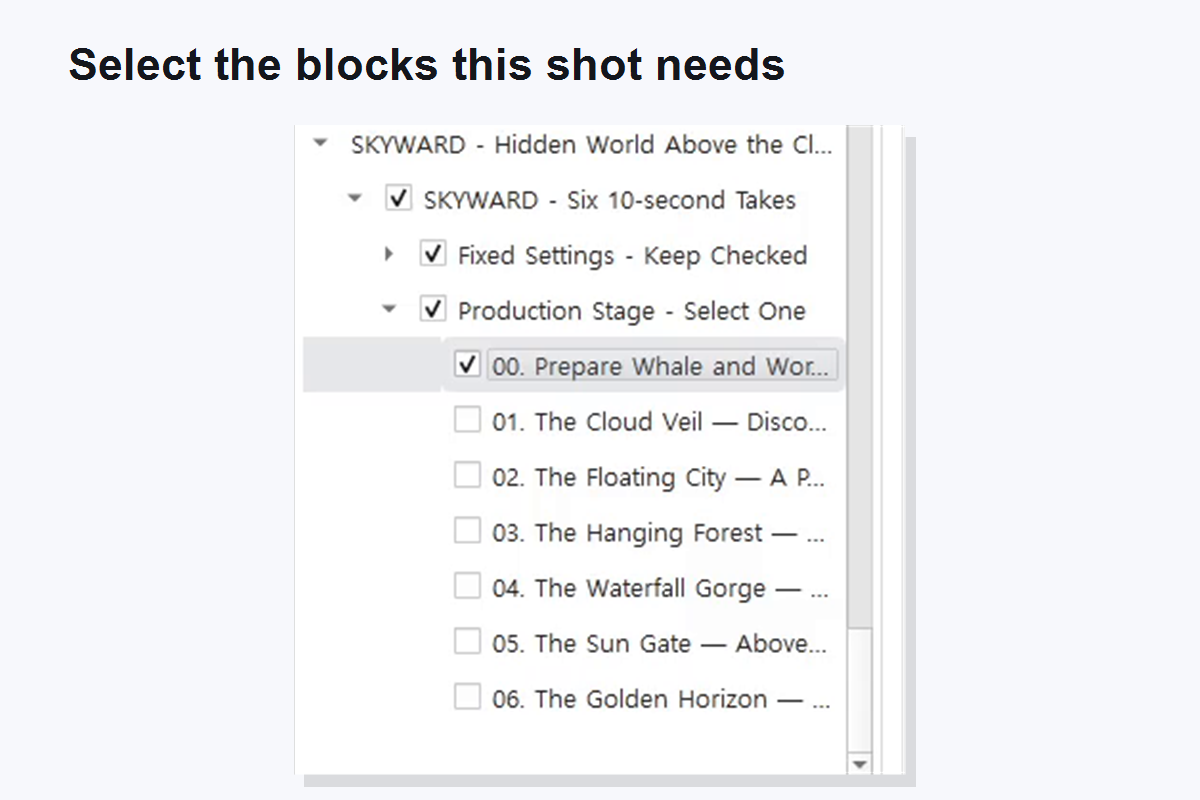
Name each block for the decision it controls, not for where you happened to write it. Labels such as “Hero wardrobe — fixed,” “Cloud-city atmosphere,” and “Shot 04 — low-angle approach” are easier to reuse than “Notes 2” or “Final version.”
Select only what the current shot needs
Before assembling a prompt, ask three questions:
- Which continuity rules must remain active?
- Which stage or shot is being produced now?
- Which blocks would conflict with that selection?
For example, select the fixed character identity, the world rules, the shared lighting block, and one shot-specific action. Leave other shot actions unchecked. This keeps the prompt focused without forcing you to rewrite the stable setup.
The goal is not the longest prompt. It is the smallest complete set of instructions for the current task.
Preview the combined prompt as one request
Selectable blocks are useful only if their combined result still reads clearly. Review the assembled prompt before sending it anywhere.
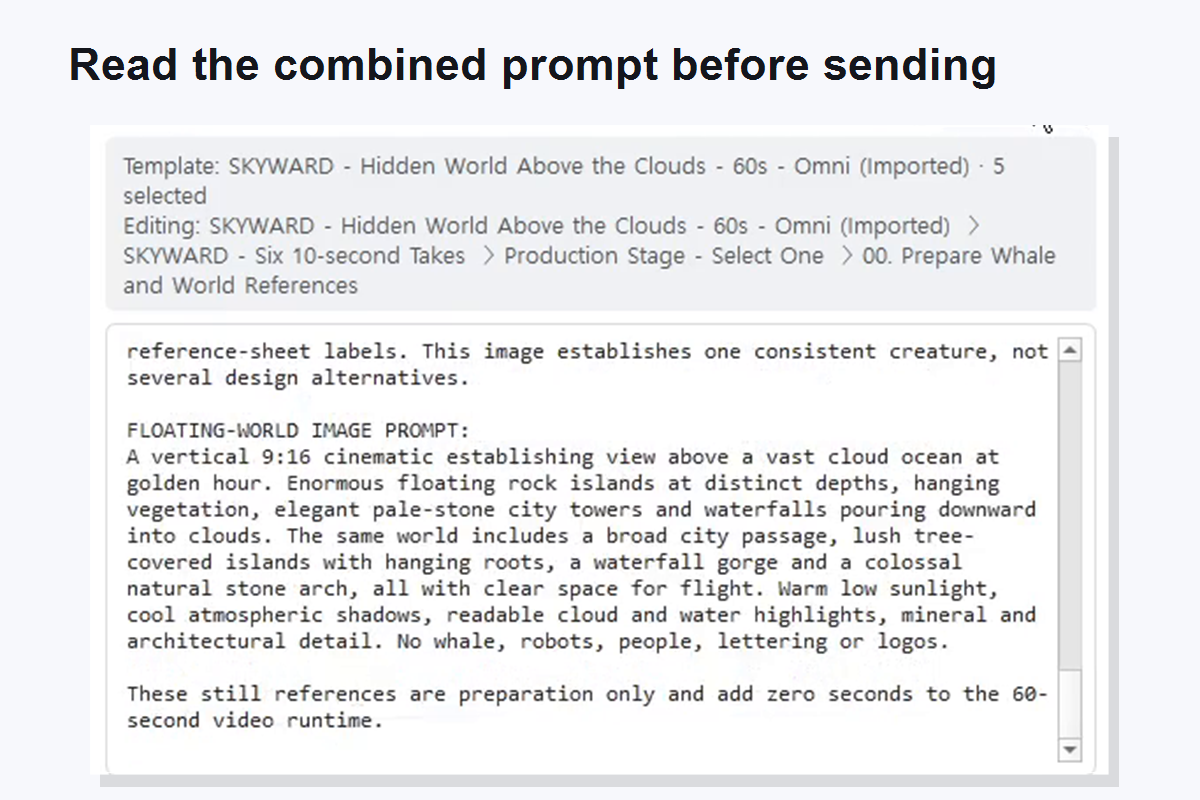
Check the preview for:
- Duplicate descriptions of the same character or place
- Conflicting camera, lighting, or action directions
- Pronouns whose subject became unclear after blocks were combined
- Dependencies on an unchecked earlier stage
- Leftover instructions from another shot
Read the final combination from top to bottom as if you had never seen the blocks. If it does not work as a standalone request, revise the blocks themselves. That improves every future combination that uses them.
Save the working combination, not just the raw text
Once a selection works, give it a name that tells you when to use it. A favorite called “Hero + cloud city + exterior dialogue” is more useful than “Prompt final 3.”
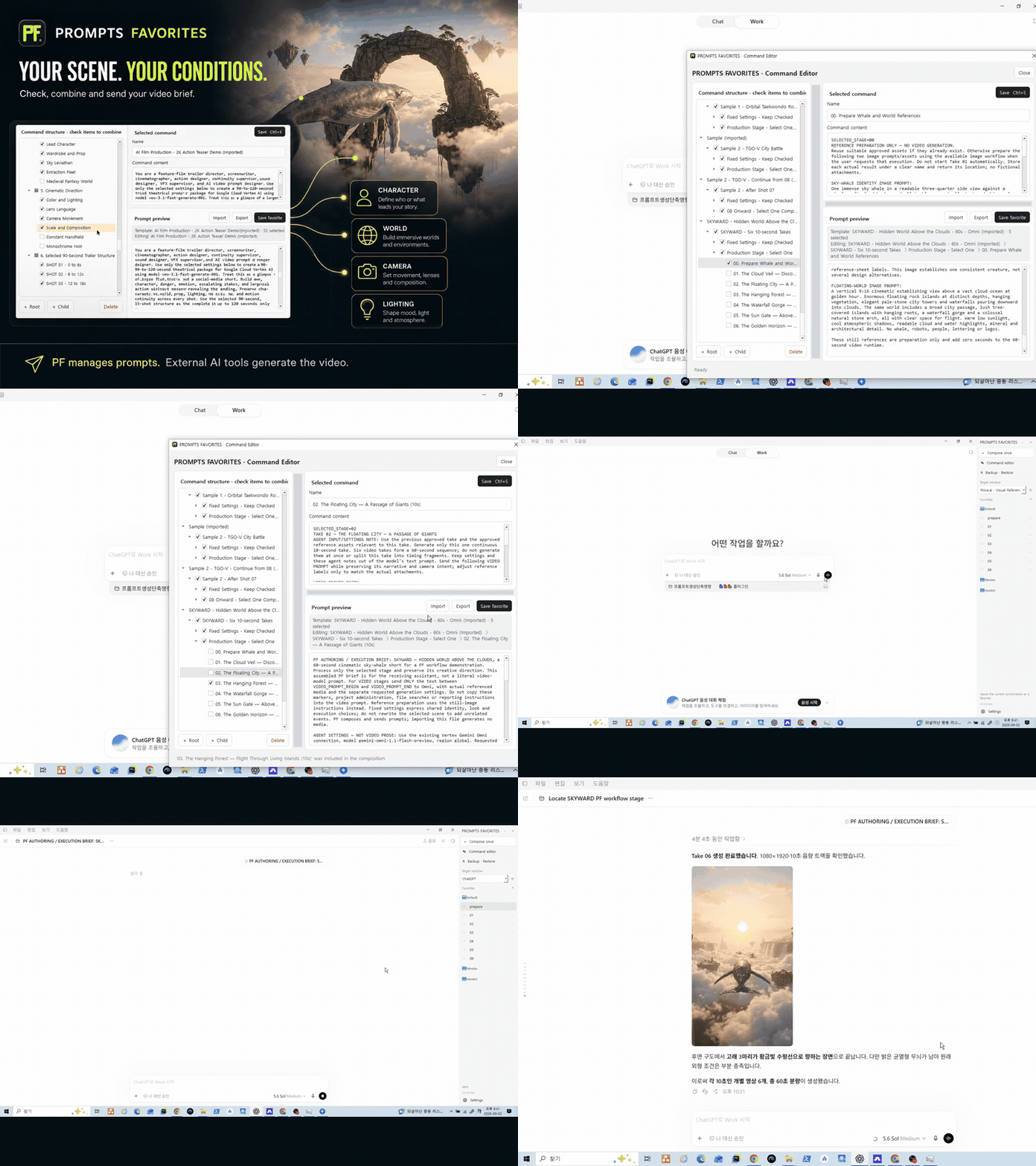
PROMPTS FAVORITES can organize instructions in a hierarchical, selectable command tree, combine checked blocks into a preview, and save named favorites or workflows in local JSON storage. On Windows, it can send the selected prompt instructions to a chosen target window. It structures and moves your instructions; it does not generate the AI answer or the video.
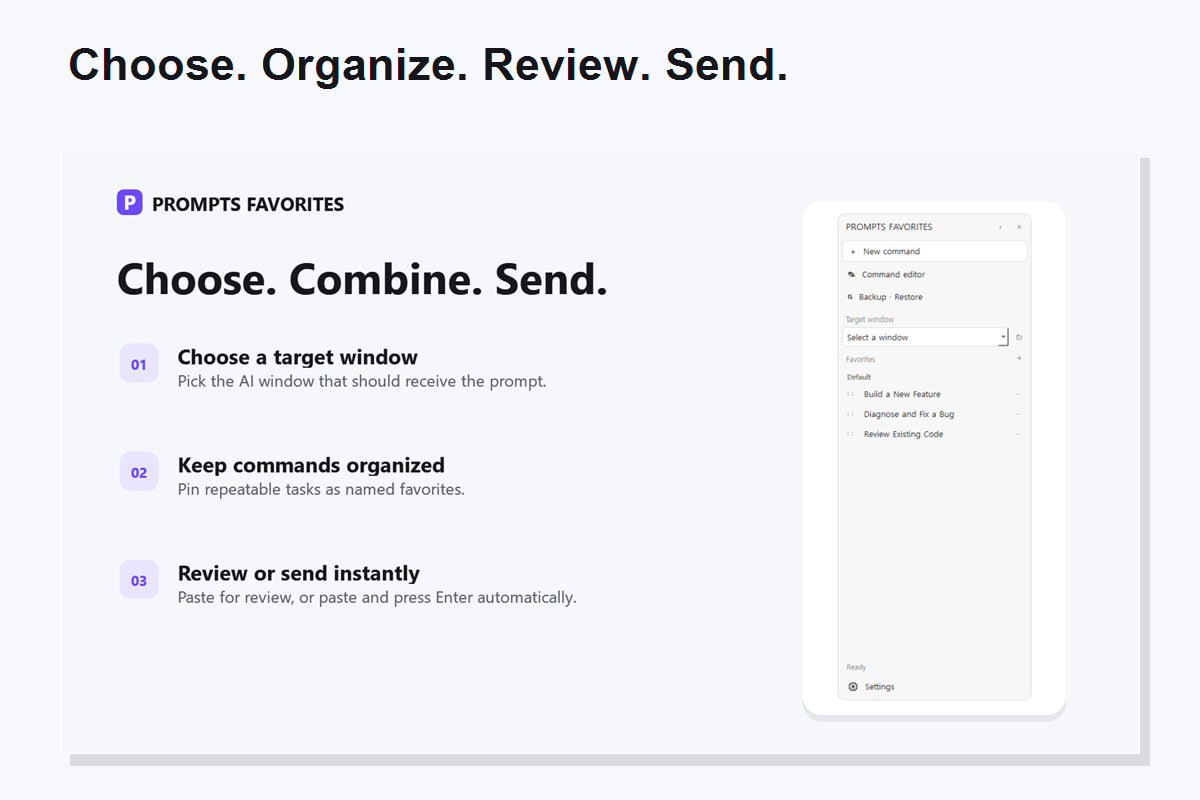
That boundary matters. Your external AI tool remains responsible for generating its output. Your reusable system is responsible for making the instructions consistent, inspectable, and ready for the next shot.
Product scope and current terms
PROMPTS FAVORITES is available for Windows with a 7-day trial, followed by USD 5 monthly or USD 50 annually. These terms come from the approved source provided for this package and were current as of September 4, 2026.
A compact workflow to reuse on every shot
- Update any project-wide continuity block that truly changed.
- Select the character and world blocks that must stay fixed.
- Select one production-stage or shot block.
- Preview the combined prompt.
- Remove conflicts and unclear dependencies.
- Save the useful selection under a descriptive name.
- Send or paste it into the intended AI tool, then review the result there.
This method turns prompt reuse into a controlled selection process instead of a copy-and-paste scavenger hunt.
Choose where the workflow should live
A block system solves the assembly problem. The next decision is where you want to maintain it: in ordinary documents, or in a dedicated selectable prompt workflow. That choice affects how quickly you can find, combine, preview, and reuse continuity instructions as a project grows.
PROMPTS FAVORITES keeps the selectable hierarchy, combined preview, and named workflows together so you can prepare the next shot without rebuilding the stable instructions.
Sources and update basis
- Approved canonical master and provided DB packet / verified PF product facts
- Product facts checked through: September 4, 2026
- No independent web research was performed for this package.