


AI Video Continuity Template: Keep One Character Consistent Across Five Shots
Direct answer: To keep one character consistent across five AI video shots, split every prompt into three layers: an unchanged project lock, a shot-specific instruction, and a continuity ledger. Paste the same identity, wardrobe, prop, world, lighting, and screen-direction lock into every shot; vary only action, framing, camera movement, and transition; then carry each shot’s ending state into the next.
When one character must survive five AI video shots, small prompt changes can become expensive continuity breaks: a jacket changes color, a scar moves, the weather resets, or the camera crosses the action axis. The fix is not to make every prompt longer. It is to separate the details that must never change from the directions that should change shot by shot.
Below is a reusable worked template for a five-shot sequence. Copy it into your preferred document or prompt system, replace the bracketed values, and keep the locked blocks identical across all five shots.
The Continuity Rule: Lock, Then Vary
- Project lock: the character, wardrobe, signature prop, location, time, weather, palette, and visual style.
- Shot instruction: only the action, framing, camera movement, and intended transition for that shot.
- Continuity ledger: a short record of what changed during the story and what must carry into the next shot.
This structure makes drift easier to diagnose. If the character changes, repair the project lock. If the staging feels repetitive, revise only the shot instruction. If a story change disappears, update the ledger.
Worked Example: Mara at the Flooded Station
The example follows Mara, a courier crossing an abandoned elevated train station during a storm. The five shots move from arrival to discovery without changing her identity or the world.
Project Lock — Paste Unchanged Into Every Shot
CONTINUITY LOCK

Character: Mara Chen, a 32-year-old East Asian woman with an oval face,
dark brown eyes, a blunt chin-length black bob tucked behind her right ear,
and a thin vertical scar through her left eyebrow.

Wardrobe: weathered mustard-yellow rain jacket with the hood down,
charcoal cargo pants, black waterproof boots, and a narrow red canvas
crossbody strap running from right shoulder to left hip.

Signature prop: a scratched silver hard-shell case carried in her left hand.

World: an abandoned elevated train platform at blue hour during steady rain;
wet concrete, rusted steel columns, pale green tile bands, shallow standing
water, and distant city lights softened by mist.

Look: grounded cinematic realism, cool blue ambient light, warm sodium-vapor
accents, restrained contrast, natural skin texture, and consistent rain direction
from upper right to lower left.

Screen direction: Mara travels from left to right unless a shot explicitly stops her.

Do not change Mara's age, face, hair length, scar position, jacket color,
strap direction, case material, hand carrying the case, location architecture,
time of day, weather, palette, or screen direction.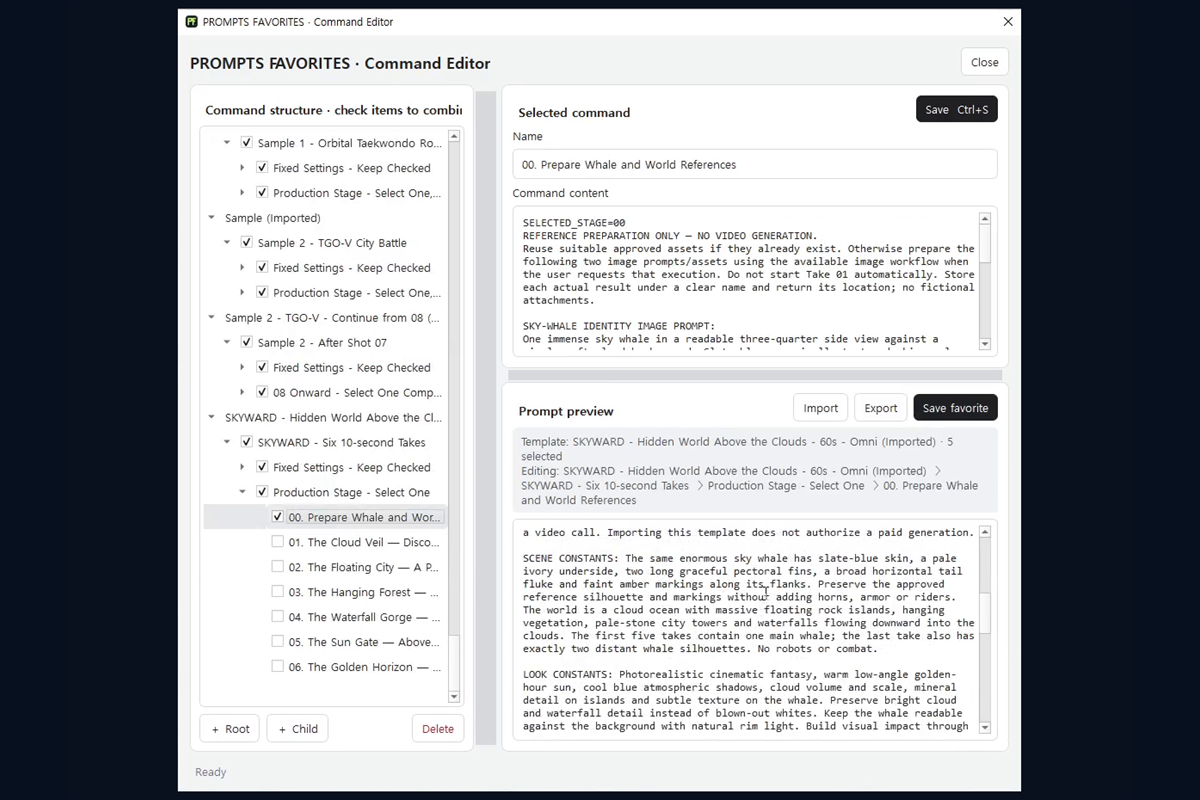
Five Shot Blocks
Attach the unchanged project lock above to each block below.
Shot 1 — Establish the World
SHOT 1 — ARRIVAL
Wide establishing shot from across the tracks. Mara enters frame left and walks
toward frame right along the flooded platform, carrying the silver case in her
left hand. A slow lateral camera move matches her pace. End with Mara approaching
the nearest rusted column. Preserve all continuity-lock details.
Continuity ledger after Shot 1: jacket and hair are wet; case remains closed and in her left hand; Mara is beside the nearest rusted column.
Shot 2 — Confirm the Character
SHOT 2 — LISTEN
Medium three-quarter view from Mara's left side, maintaining left-to-right screen
direction. She stops beside the same rusted column and listens toward the dark end
of the platform. Gentle push-in. The red strap remains visible across her chest;
the silver case stays in her left hand. Match the wetness established in Shot 1.
Continuity ledger after Shot 2: Mara has stopped; she is alert and looking down the platform; no prop or wardrobe change.
Shot 3 — Reveal the Clue
SHOT 3 — REFLECTION
Close shot over Mara's right shoulder toward a shallow puddle at her feet. A warm
light pulses in the puddle reflection while the source remains offscreen. Mara
leans slightly forward but does not set down or open the case. Keep the column,
tile band, rain direction, and blue-hour lighting consistent.
Continuity ledger after Shot 3: the warm pulse has appeared; Mara still holds the closed case; her attention shifts downward.
Shot 4 — Show the Decision
SHOT 4 — TURN
Medium close-up from the same side of the action axis. Mara straightens and turns
her gaze from the puddle toward frame right. The warm pulse grazes the left side
of her wet face while cool ambient light remains dominant. Hold on her decision
for one beat. Preserve her scar, hair, jacket, strap, and case exactly.
Continuity ledger after Shot 4: Mara is now committed to moving right; the warm pulse continues; nothing has been added or removed.
Shot 5 — Continue the Motion
SHOT 5 — DEPARTURE
Low tracking shot moving parallel with Mara as she strides from left to right past
the rusted column toward the warm pulse. Begin on her black boots crossing the
shallow water, then tilt to a medium profile. The closed silver case swings only
slightly in her left hand. End with Mara exiting frame right. Match every locked
identity, wardrobe, world, lighting, and weather detail.
Continuity ledger after Shot 5: Mara exits frame right; the case remains closed in her left hand; the locked character, world, lighting, and weather remain unchanged.
A Fast Continuity Check Before Each Shot
- Identity: Are face, hair, scar, age, and body description unchanged?
- Objects: Are wardrobe, strap direction, prop, hand, and prop state unchanged?
- World: Are location, weather, light, palette, and architecture unchanged?
- Sequence: Does the opening state of this shot match the previous shot’s ending state?
When something intentionally changes, record it in the ledger immediately. For example, if Mara opens the case in Shot 5, the next shot must begin with the case open unless the story visibly closes it.
How to Repair a Drifting Shot
- If Mara’s appearance changed, strengthen the relevant sentence in the continuity lock and rerun only the failed shot.
- If the location changed, repeat the distinctive architectural anchors and remove conflicting scenery from that shot.
- If motion reversed, restate the left-to-right screen direction and camera side.
- If a story state disappeared, add the missing state to both the prior shot’s ledger and the failed shot’s opening instruction.
One clean correction is easier to evaluate than several simultaneous changes.
Turn the Template Into a Reusable Prompt Workflow
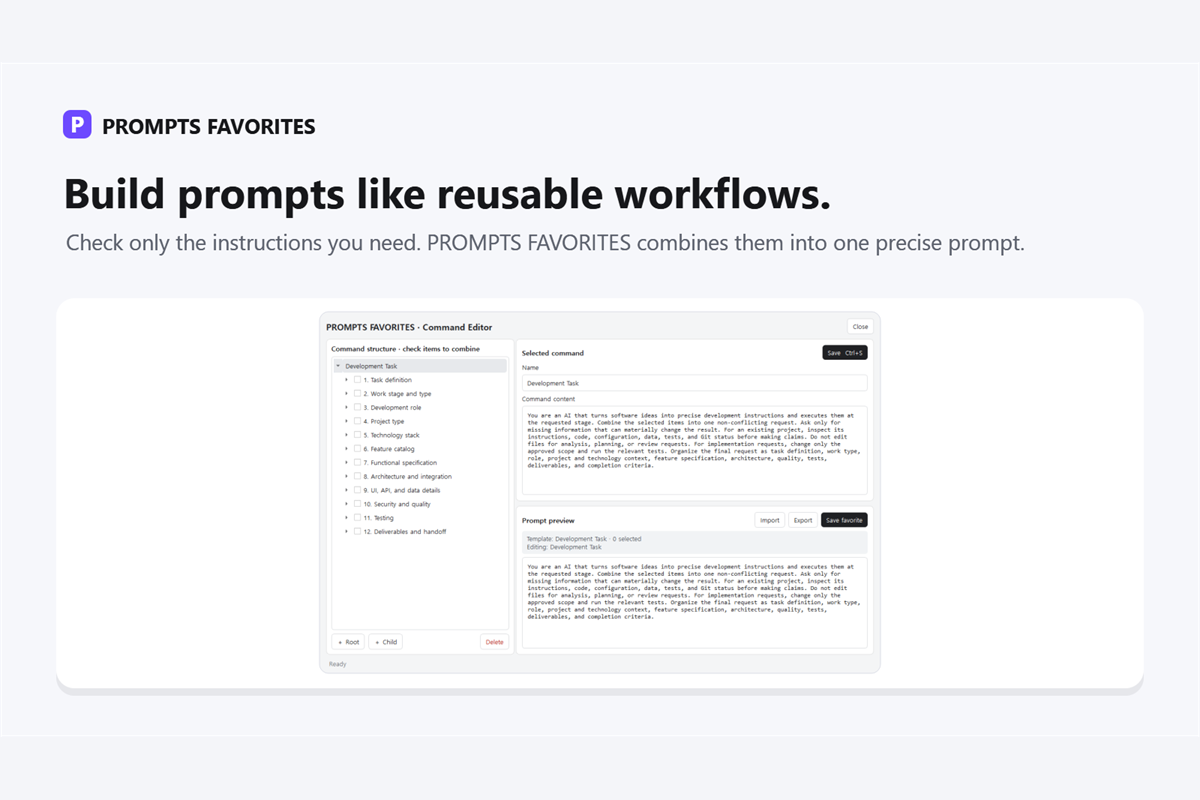
The manual version works: keep the project lock in one place, keep five shot blocks below it, select one shot at a time, preview the full combination, and save the sequence under a clear project name.
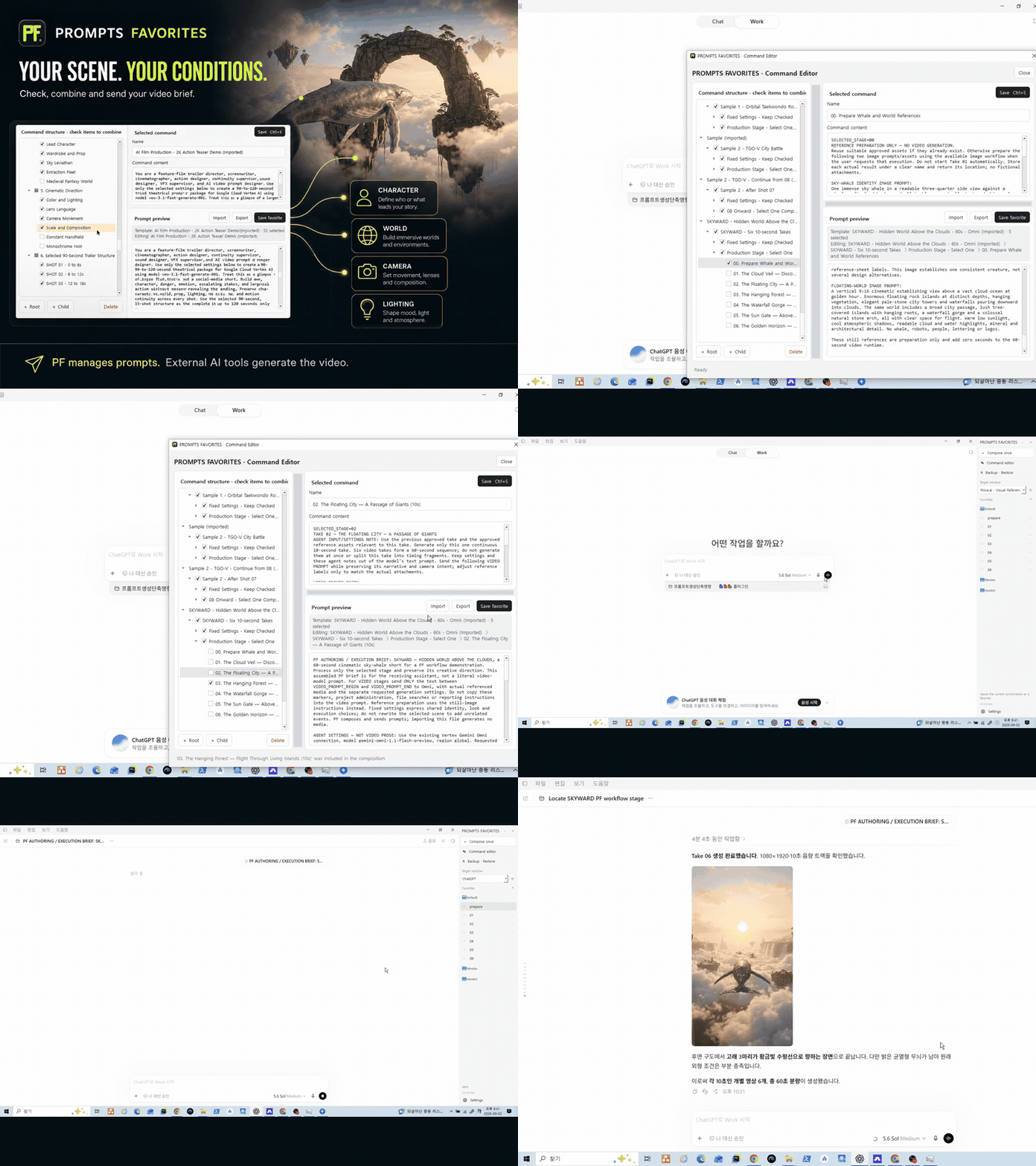
PROMPTS FAVORITES is built for that prompt-management job on Windows. It lets you organize hierarchical, selectable instruction blocks in a command tree, combine selected blocks into a preview, save named favorites or workflows in local JSON storage, and send the selected instructions to a chosen Windows target. PF manages the instructions; the external AI tool generates the response or video.
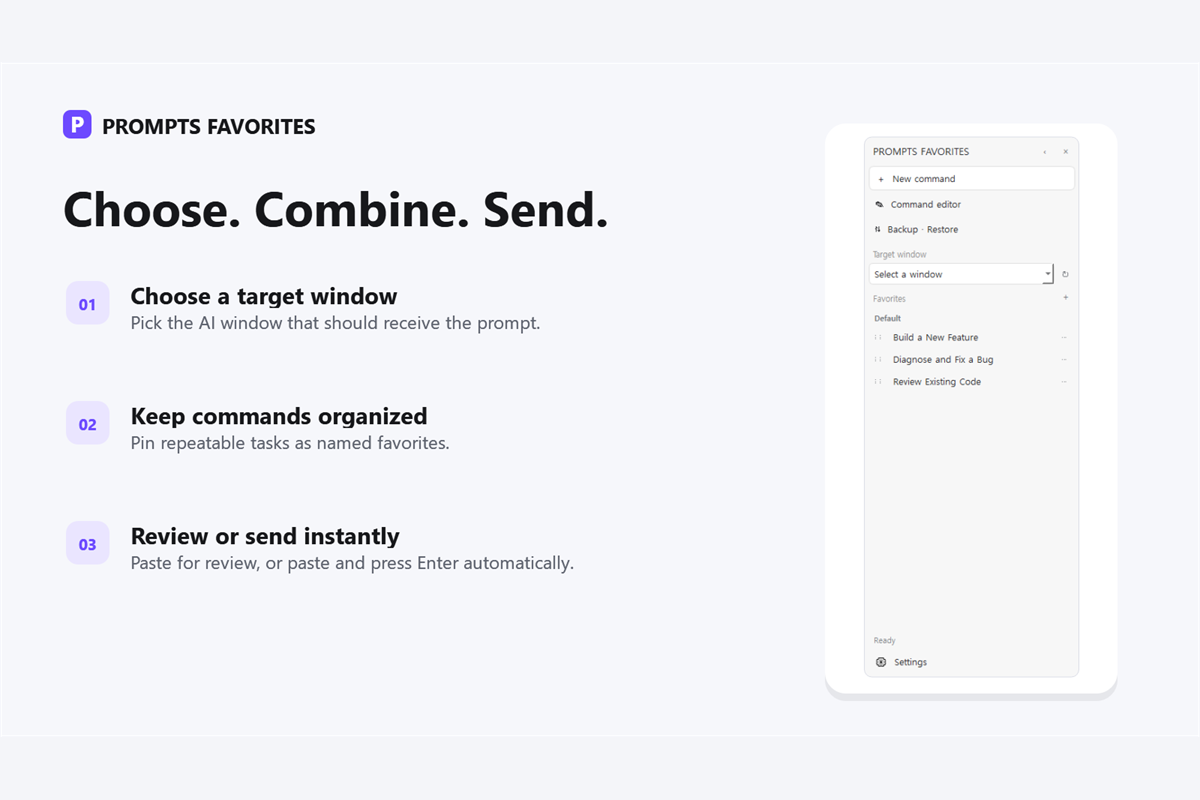
PROMPTS FAVORITES does not generate AI answers, videos, code, content, or income. It helps you structure, combine, save, preview, and send the prompt instructions you choose.
Keep Every Continuity Lock Ready for the Next Shot
Store the reusable lock and shot blocks together, preview the selected combination, and send the instructions you choose with PROMPTS FAVORITES.