

How to Keep AI Video Characters Consistent Between Shots
Your lead has the right face in shot one, a different jawline in shot two, and an unexplained wardrobe change by shot three. The doorway moves. The lighting flips. The whole world quietly adopts a different visual language.
Every mismatch costs attention. Instead of shaping the story, you end up comparing frames, rewriting prompts, and trying to remember which detail disappeared. The practical fix is not more adjectives. It is a prompt structure that separates fixed rules from intentional changes.
Why AI video characters drift between shots
When every shot is written from scratch, continuity usually breaks in one of three ways:
- A defining trait is omitted because it felt obvious.
- A fixed trait is rephrased until its meaning changes.
- A shot-specific direction overrides the character or world definition.
The model receives the instructions in front of it—not your memory of the previous shot. A long paragraph does not solve that problem when permanent details and changing directions are mixed together.
The goal is to make everything that must stay stable easy to reuse, while isolating everything that is allowed to change.

Build two anchors before writing the next shot
Start with a compact character anchor. Include only identity-defining details:
- stable physical features and silhouette
- fixed wardrobe or signature props
- age range and presentation, when relevant
- material, texture, or rendering style
- explicit traits that must not change
Then create a separate world anchor with the rules for location, recurring architecture, time of day, lighting, color palette, atmosphere, scale, and visual style.
Keep both anchors concrete enough to recognize and short enough to reuse without editing. If a trait is allowed to change, remove it from the anchor and put it in the shot instructions instead.
Add only the shot delta
For each new shot, describe what changes now instead of rewriting the entire project. A useful shot block can contain:
- the action or emotional beat
- the location within the established world
- framing and camera movement
- any shot-specific lighting adjustment
- a reminder to preserve the character and world anchors
Character anchor + world anchor + shot delta
This makes contradictions visible. If the character anchor says “weathered black flight jacket” and the shot delta says “white ceremonial coat,” you can catch the conflict before generating the shot.
Run a 30-second continuity check
Before sending the next set of instructions, compare it with the previous approved shot:
- Did any part of the character anchor change?
- Did the world rules change without an intentional story reason?
- Does the camera reveal details you have not defined?
- Is there a wardrobe, prop, lighting, or scale conflict?
- Is every intentional change contained in the shot block?
This check cannot guarantee identical outputs. It can make your instructions more consistent and give you a cleaner place to diagnose drift.
Diagnose the smallest responsible layer
If the face changes, inspect the character anchor. If the setting changes, inspect the world anchor. If the composition changes, inspect the camera and shot blocks.
Fix the smallest responsible layer instead of rewriting the entire prompt. Replacing everything after one disappointing shot may solve one problem while reintroducing two others.
A repeatable workflow for multi-shot projects
Use this sequence for the next two shots:
1. Lock the reusable rules
Write one character anchor and one world anchor. Remove anything that should vary from shot to shot.
2. Write the first shot delta
Add only the action, location within the world, framing, camera movement, and intentional lighting changes.
3. Approve and preserve
Once the result is usable, keep both anchors unchanged. Record only the adjustments that genuinely belong in a fixed rule.
4. Replace the delta for the next shot
Change the story beat and camera instructions, then run the continuity check before generating again.
Where PF fits in the workflow
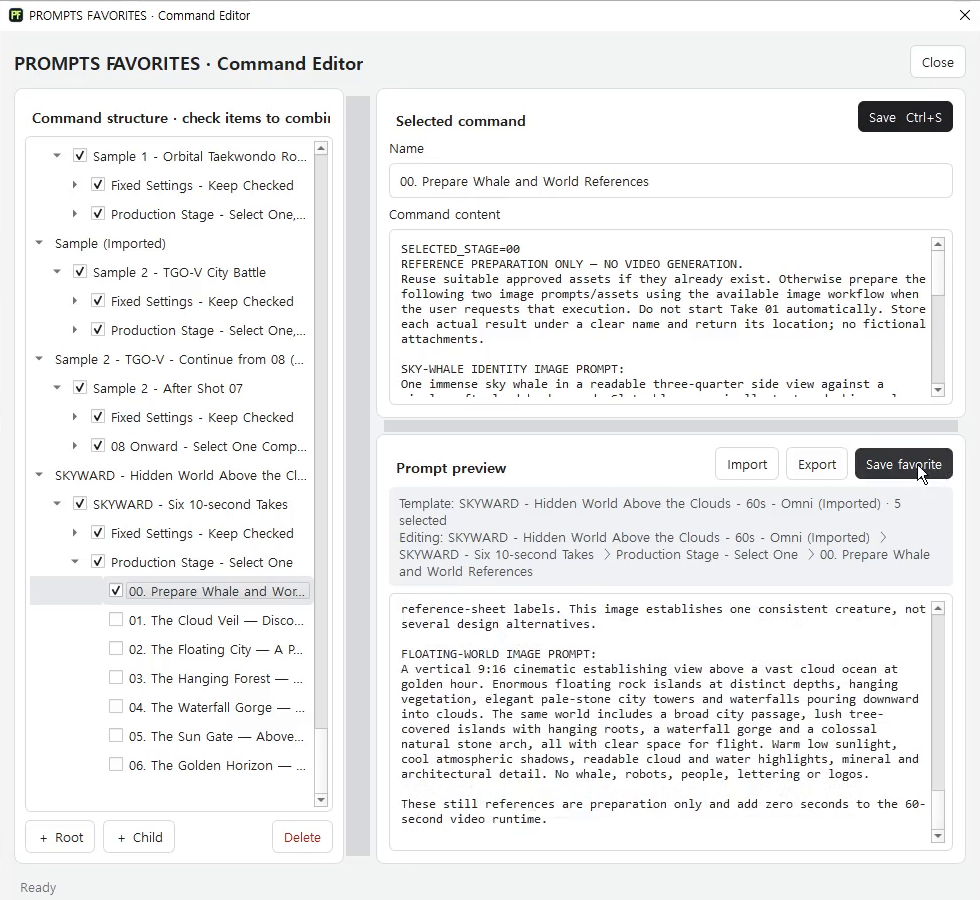
You can manage this structure in a document, but the friction grows with the project: finding the current version, copying the right blocks, reviewing the combined instructions, and keeping successful setups available for reuse.
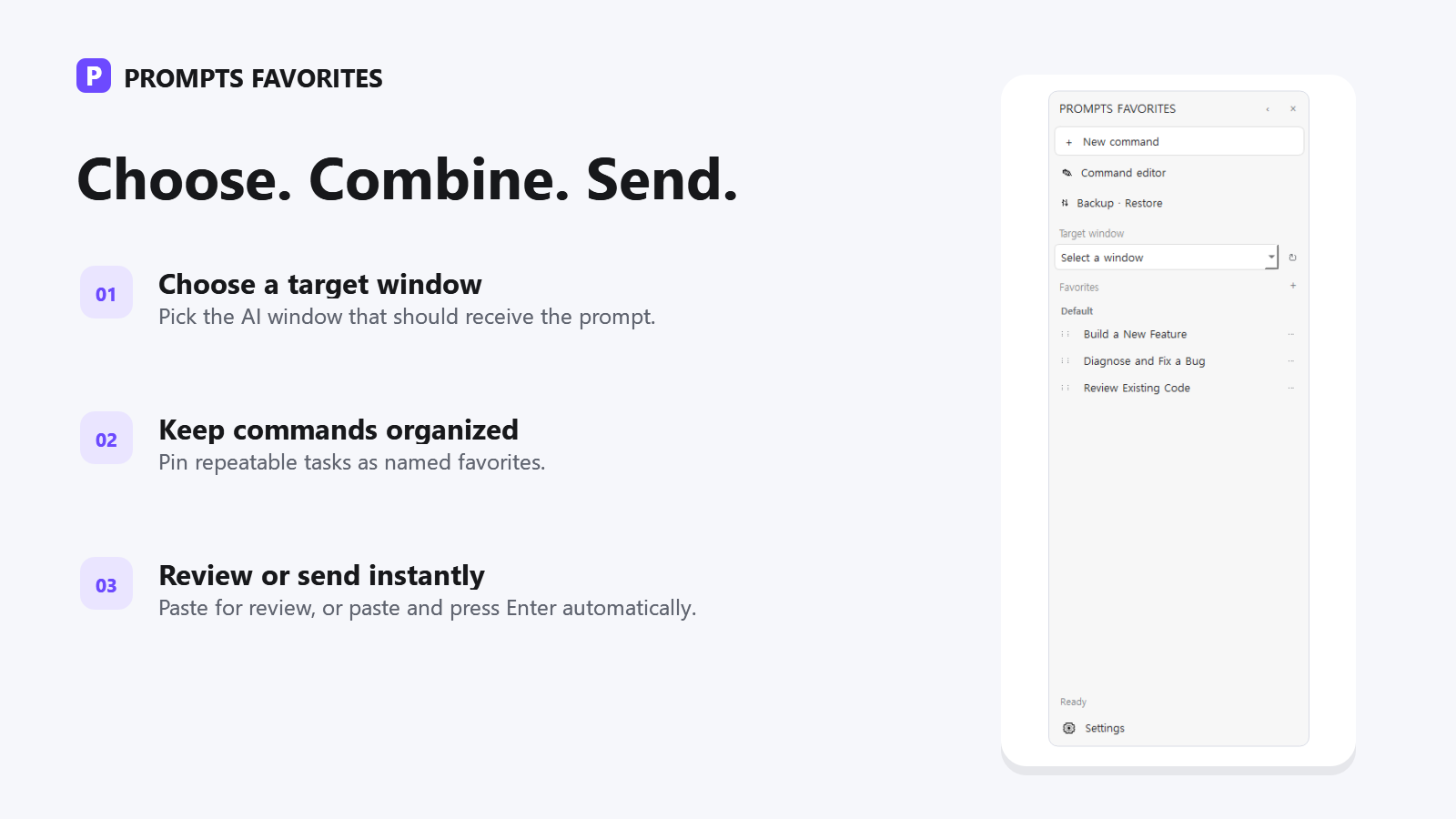
PF is a Windows product for managing that instruction workflow. It provides hierarchical, selectable instruction blocks or a command tree, a combined preview, named saved favorites or workflows, local JSON storage, and sending to a selected Windows target. It structures, combines, saves, previews, and sends prompt instructions.
PF does not generate the AI answer or the video. It does not generate code, content, or income. The external AI tool still performs the generation; PF helps you control the instructions you send to it.
The available offer is a 7-day trial, then USD 5 monthly or USD 50 annually.
Make the next shot change on purpose
Before you generate again, write one character anchor, one world anchor, and one shot delta. Save the anchors. For the following shot, keep both anchors unchanged and replace only the delta. You will have a clearer prompt, a faster review, and a specific layer to inspect when something drifts.
Continue to How to Separate Character, World, Camera, and Shot Instructions so your reusable rules stay fixed while each shot remains free to move the story forward.
Keep Character and World Rules Consistent Across Every Shot
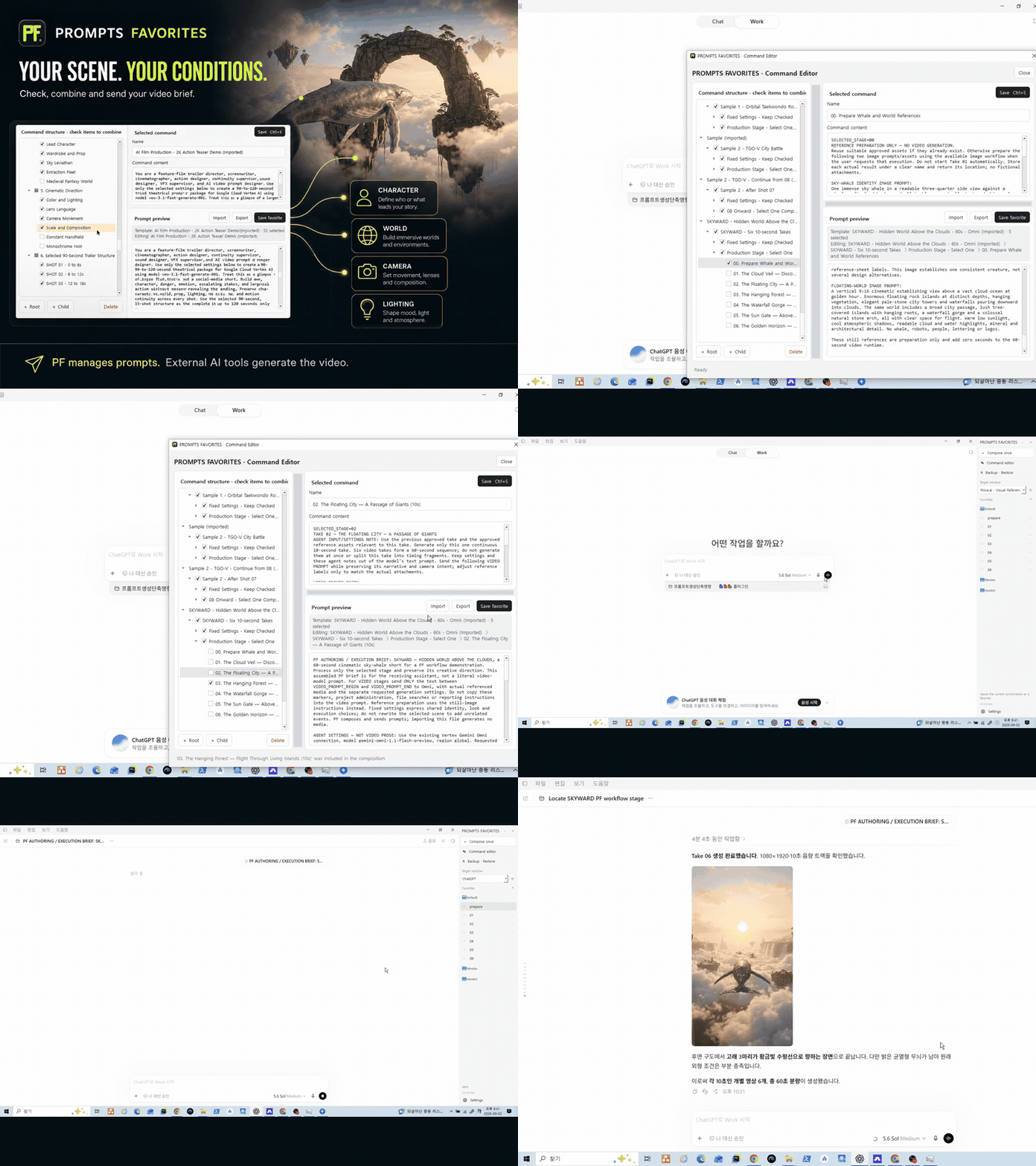
PF lets you save character and world anchors as reusable instruction blocks, combine them with each new shot delta, and review the full prompt before sending it to your selected Windows target. That keeps stable rules easy to reuse while each shot remains free to change on purpose.